Your camera or screen. Your AI agent.

Keep talking.
Let it see.

Your work, in the conversation.

Show your AI assistant what’s in front of you—or what’s on your screen. Connect a phone camera, webcam, or desktop screen, then ask your agent for a fresh look when you need one.

Photos and screenshots, on request. An MCP-compatible agent. No app to install.

A view of the physical worldCamera setup illustration
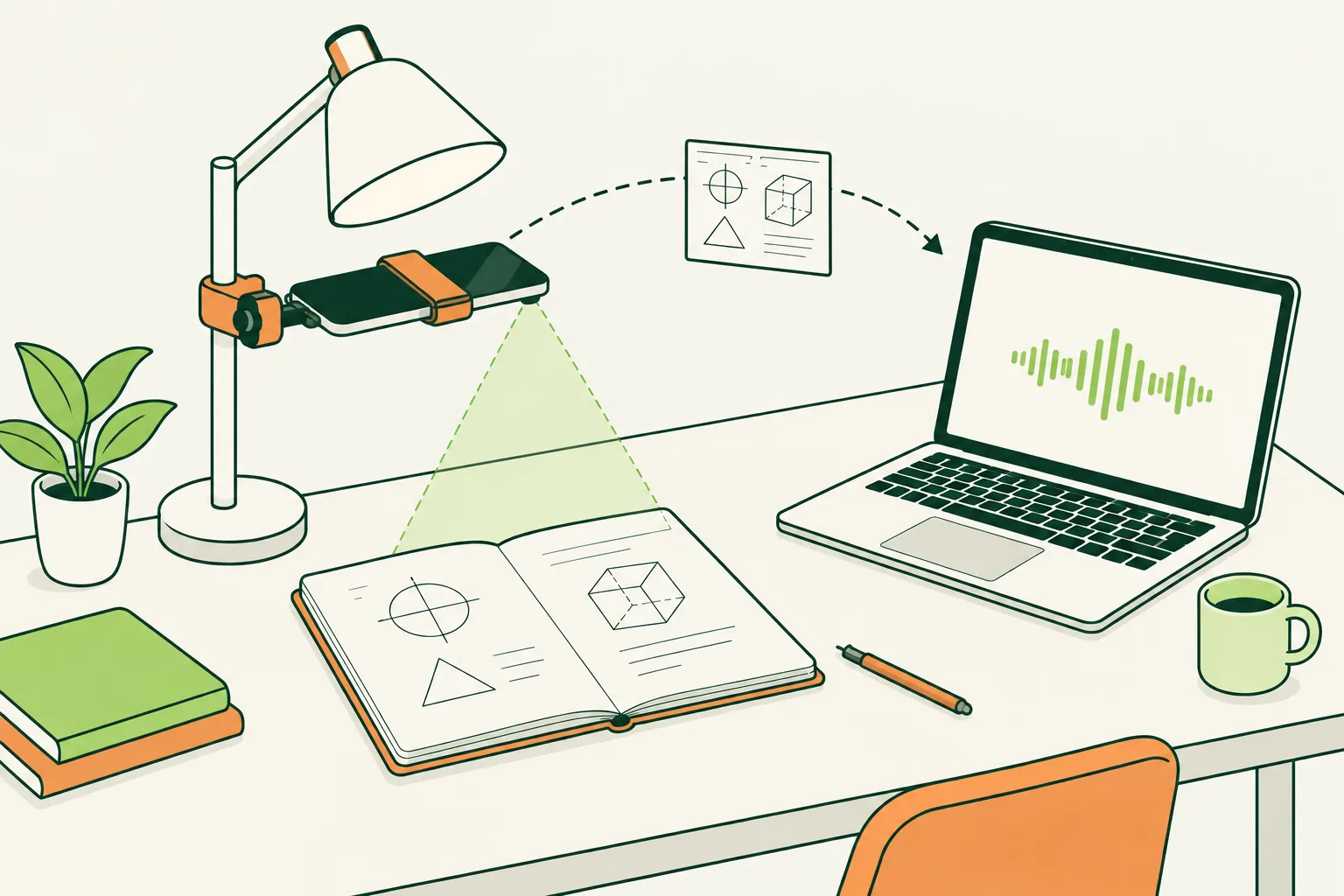
A phone mounted to a desk lamp above an open notebook, sending a snapshot to a voice agent on a laptop.
A phone camera for the work on your desk.
CameraYour phone, webcam, or USB camera.
Screen or windowYour desktop. No webcam needed.

You choose what to show.

Only requested images are uploaded.

No audio capture. Stop sharing anytime.

From your desk to your desktop

Less describing.
More doing.

Bring a page of notes, a project on your workbench, or a window on your computer into the conversation.

01 / On paper

Think out loud.
Work it out by hand.

Mount your phone to a desk lamp or overhead stand. Work through a sketch, diagram, or calculation while your agent follows along with requested snapshots.

“Look at the diagram I’ve drawn. Talk me through the next step.”
02 / On your screen

Talk through the window
you’re working in.

Choose a browser tab, app window, or display in a supported desktop browser. Get a fresh screenshot to discuss a chart, review a design, or work through a confusing interface.

“Take a screenshot of the window I’m sharing. Help me understand this chart.”

03 / At the workbench

Give the small details
a closer look.

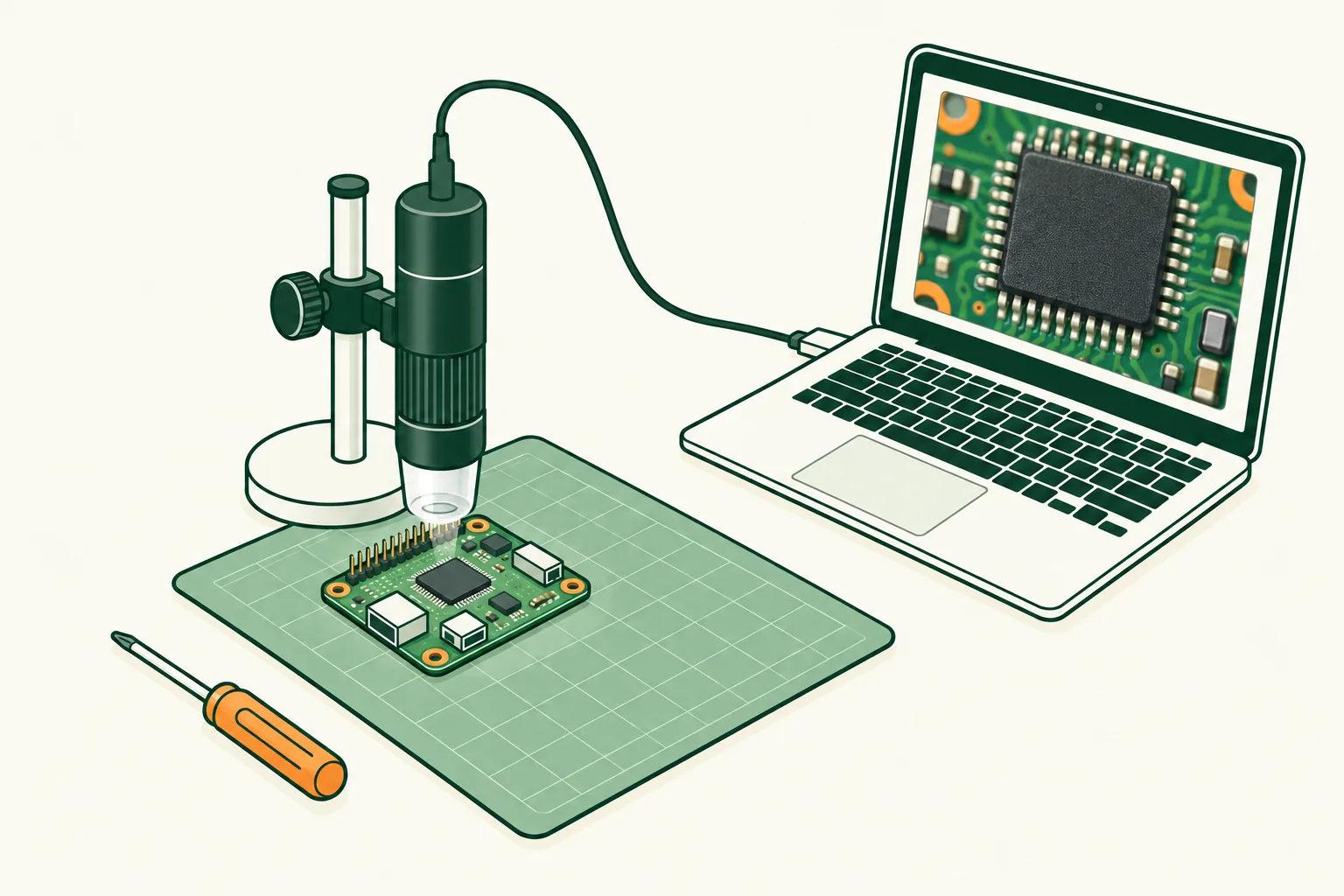
Connect a USB webcam or a browser-compatible USB microscope to your laptop. Bring a circuit board, model, or craft project into the conversation.

“Take a closer look at this connector. Which way should it fit?”

04 / In the lab

Keep your hands
on the experiment.

Use a fixed camera to discuss visible changes, compare observations, or read handwritten notes during a supervised experiment.

“When we compare these samples, ask the camera for a fresh view.”

A vertically mounted USB microscope with its objective pointing down at a circuit board, connected by USB to a laptop.
A closer look, with the hardware you have.Use a camera your browser recognizes. USB microscopes must expose a standard webcam feed.

One setup. Two ways to share.

One connection.
A fresh perspective.

Connect your agent once. Choose a camera for the physical world or a screen share for desktop work.

You’ll need an AI client that supports remote MCP, OAuth sign-in, and image results. Its capture tools must be available in the session you’re using. Screen sharing needs a supported desktop browser.

1

Connect your agent

Add LetItSee.com as a remote MCP server in your agent’s settings.

Transport Streamable HTTPAuthentication OAuth

Complete the sign-in prompt to authorize your agent. Read the setup and tool reference.

Connecting in ChatGPT
  1. Open Plugins, choose +, then Add custom MCP server.
  2. Use Camera by LetItSee.com as the name, paste the URL above, and choose OAuth.
  3. Create the plugin, sign in, review the tools, and install it. Select it with @ in a new conversation.

Custom plugins depend on your account and workspace settings. Tool availability can differ between text and voice sessions.

ChatGPT’s connection guide ↗
2

Choose what to show

Open the capture page on the device you want to share from. Sign in with the same account as your agent, then choose your source.

Phone or desktop

Use a camera

On desktop, click Use camera, allow access, then select your webcam. On a phone, allow camera access and use Flip for the front or back camera.

Desktop only

Share a screen or window

Click Share screen or window, then select a tab, window, or display in the browser’s chooser. Options vary by browser and operating system. No webcam or camera permission is needed.

Open capture page https://letitsee.com/live

Keep the capture page open. For phone cameras, keep it visible and the screen awake.

3

Give your agent the task

Ask your agent to check the connection, then request a photo or screenshot and tell it what you want help with. You can switch back to chat while a desktop source stays live.

“Take a fresh look at what I’m sharing. Talk me through what you see.”

Your agent’s permissions and approval settings still apply.

Your view, on your terms

You set the view.
You stay in control.

Photos and screenshots, on request
The live preview stays in your browser. Your connected agent receives a still image when it requests a capture. LetItSee does not continuously upload your camera or screen.
You choose the view
Select the camera or choose a tab, window, or display in your browser. Screen sharing captures no microphone, tab, or system audio. Your voice conversation belongs to your agent.
Switch or stop at any time
Change the shared surface or switch back to a camera on the capture page. Use Stop sharing or your browser’s sharing control to end a share. Ending it never starts a webcam. One capture page is active per account.

Before you connect.

Is this a continuous video feed?

No. The preview is local. Your agent receives individual photos or screenshots during the task you’ve asked it to help with. LetItSee does not continuously upload video or capture microphone, tab, or system audio.

Can I use it during a voice conversation?

Yes, if your client supports MCP capture tools and image results in that voice session. A practical setup is a voice agent on your laptop and a phone camera pointed at your work. The voice session and its audio are handled by your agent, not LetItSee.

Can I share one window instead of my whole screen?

Yes, in desktop browsers that offer window sharing. Click Share screen or window and select the view you want in the browser’s chooser. The available choices depend on your browser and operating system. No camera permission is needed. Click Change screen or window to choose again; cancelling keeps the current source.

Does the capture page need to stay open?

Yes — keep it open. You can switch back to chat on desktop while your selected camera or screen share stays live. Mobile browsers can suspend the camera when you switch apps or lock the phone. Use a separate device for your conversation if needed. Browser or OS suspension can still pause a source. Opening the capture page on another device makes the previous page inactive. Reconnect explicitly to use it again. Screen sharing then needs a fresh selection in the browser chooser.

Will any USB microscope work?

It must appear as a webcam in your browser’s camera selector. Devices that require a proprietary viewing app may not work. Check that your browser can display its feed before connecting your agent.

What happens to the images?

LetItSee temporarily handles requested images to deliver them to your agent; it does not provide a photo archive. Your AI provider may retain them under its own policies. Read our privacy policy for details.

Bring your agent to the task

Show it what
you’re working on.

Connect your agent

Phone camera, webcam, or desktop screen.